Release Notes
June 2019
What's New
In our June release, we are introducing the beta of our new Policy Management feature. Policy management gives administrators a unified means of targeting devices with specific configurations—including Wi-Fi, VPN, apps, labels, passcodes, and profiles. To ensure devices maintain their expected configurations, policy management actively monitors and enforces each device configuration. The policies feature also provides status monitoring of unsent changes during deployment and maintains a history of all changes after deployment. For existing customers, our support team will contact you via email to inquire about participation in the beta of KACE Cloud MDM Policy Management.
In addition to policy management, we’ve implemented a new command for clearing restrictions on all device types and added several new device owner restrictions for Android. There are also two new filtering options and three new restrictions for supervised iOS devices: App usage restrictions, Internet content blocking and filtering, and Kiosk mode.
New Feature: Policy Management beta
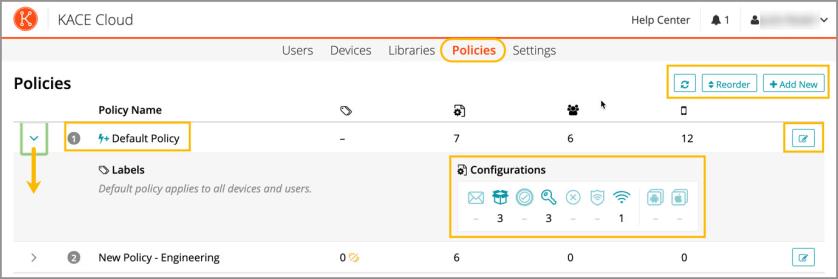
Policies allow the creation of various deployment packages that include configurations like Wi-Fi, VPN, and apps, as well as labels, passcodes, and OS-specific options. The new Policies section can be accessed in top navigation and opens to show all existing policies. From the all policies page, an admin can add new policies, reorder the list of existing policies, and open each individual policy row to view/edit details (Image 1).
Once the Policy Management beta is enabled, the auto-deploy function and defaults for passcode rules will be replaced by the Default Policy in KACE Cloud MDM. Default Policy shown in Image 1.
Image 1: All Policies Page
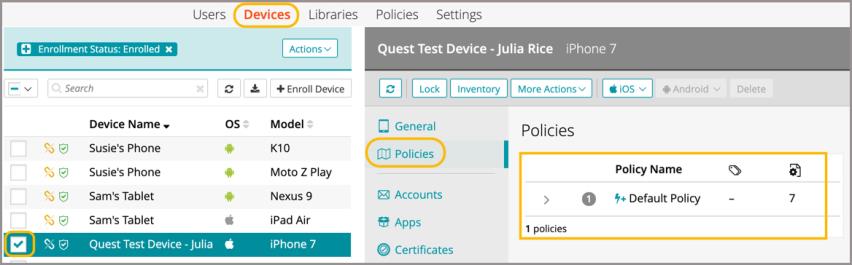
Once an individual policy is selected, an admin can open it for viewing and editing. The admin can edit the policy name, add and edit notes, as well as view a list of unsent changes and the change history for the policy. A policy can be also be activated or deactivated to allow or prevent it from being applied to devices (Image 2). Once opted in to the Policy Management beta, the first default policy is created by KACE Cloud MDM as a baseline, and is then applied to all users and devices. Subsequent policies are then created using different labels and/or configurations, and will supercede the default policy in the case of a conflict. These policies can also be deployed to pre-defined groups of devices and users. Policy details can also be accessed from the devices or users view. To see which policies are applied, select one or more devices/users, then in the right panel select Policies (Image 3).
Image 2: Individual Policy Page
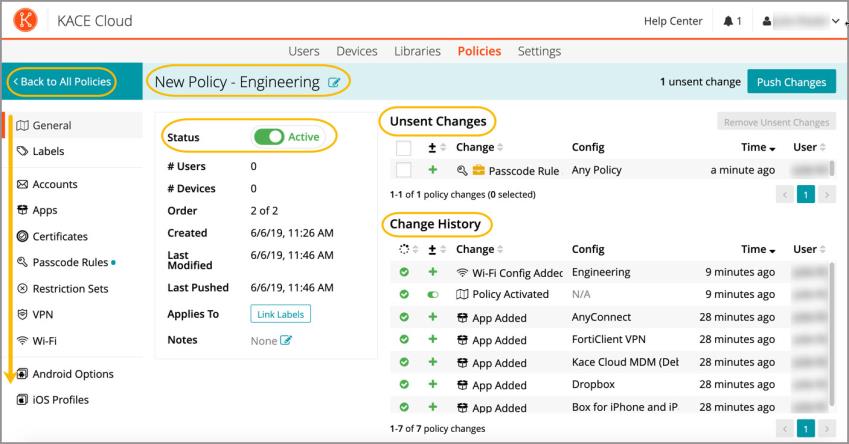
Image 3: Devices View - Access Policies
Learn more about Policy Management.
Functional Enhancements
Clear Restrictions Command
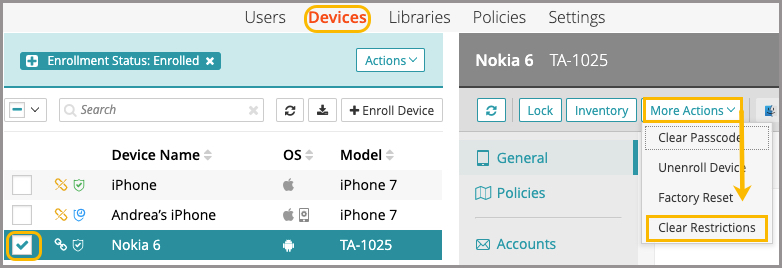
The Clear Restrictions function is available for both iOS and Android devices. The command clears out all restriction sets currently on the device. It can be useful for creating a 'blank slate' environment before reprovisioning; for example, after running a trial. From the devices view, an admin can select one or more devices, then select the More Actions dropdown and choose Clear Restrictions.
Device Owner Restrictions for Android
With the addition of several new Android device owner restrictions, admins now have more control over a user’s ability to:
- Configure Wi-Fi, VPN, cellular networks, and general preferences.
- Send texts and make outgoing calls.
- Unenroll from KACE Cloud MDM.
- Beam out data using near field communication (NFC).
New Filters:
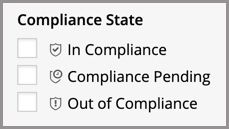
Compliance State
From both the users and devices views, an admin can now use the new compliance state filters to determine whether a user or device are: 1) In Compliance, 2) Compliance Pending, or 3) Out of Compliance.
Policies
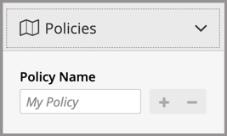
From both the users and devices views, an admin can now filter by policy name to quickly access a set of users or devices that have a specific policy (or policies) applied.
New iOS Restrictions:
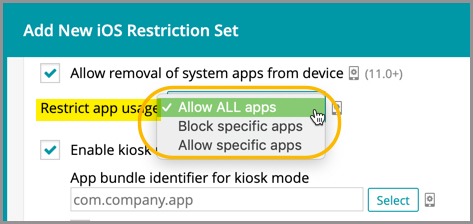
App Usage Restrictions
The new app usage restrictions for iOS devices let an admin choose to: Allow ALL apps (default), Block specific apps, or Allow specific apps. To select apps, an App Bundle ID is required. If the Bundle ID is known, these apps can be added manually in the field provided. If the Bundle ID is not known, the app can be selected from the App Library. Only available on supervised iOS devices. See Built-in Bundle IDs.
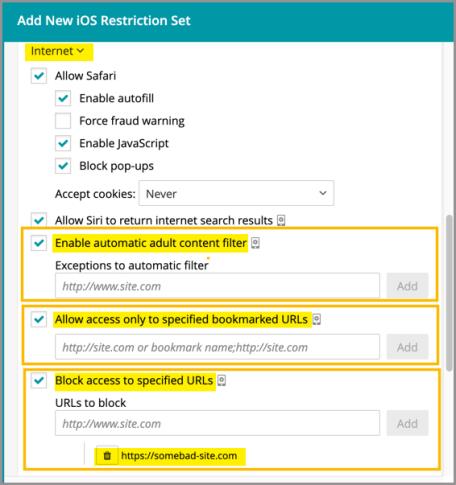
Internet Content Blocking and Filtering
Internet content blocking and filtering allows an admin to block or allow access to specific websites. Enabling the automatic adult content filter means the default Apple filter is applied, which is the standard used by Apple on iOS devices. Only available on supervised iOS devices.
Kiosk Mode
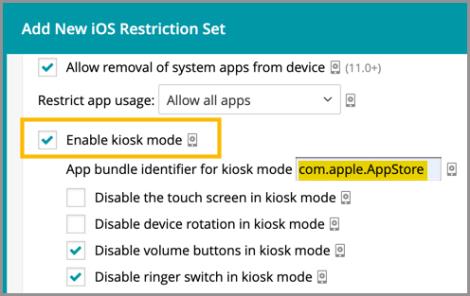
Kiosk mode is a security feature that allows an admin to lock down a device so activity is limited to a specific app or task. Apple also refers to the function as 'app lock'—where the locked app is the only thing displayed on the device. The kiosk mode setting is located under the Store and Apps section when adding a restriction set on a device. Kiosk mode can only be applied to supervised iOS devices. See Built-in Bundle IDs.
Known Issues
Role Management and SSO Configuration
If user role assignment is set to Automatic during SSO Configuration, a manual attempt to update an individual user's role via the Users > Edit User path may appear possible, but will be overwritten by the original SSO Configuration. To resolve, the configuration setting can be changed to Manual, which will then enable editing of individual user roles.
Android-Specific Considerations
Device Owner Setup
When using the Device Owner enrollment flow (afw#kace), the enrollment flow may not complete if the Google Play services on the factory default image of the device are out of date. This a known issue with the Android operating system, caused by the enrollment process timing out before the update of the Play services on the device can complete. You will know that this situation occurred if you are never asked for your subdomain name during the enrollment process. If you end up back at the device home screen, locate and launch the KACE Cloud MDM agent app on the device and click the 'Enroll Device' button to complete the setup process.
Gmail App
Android devices require the Gmail app to be installed in order to use the email account configurations.
Set and Clear Passcode Commands
The set and clear passcode functions are different in Android 7.0 and later. On versions prior to 7.0, an administrator could set or clear the passcode as desired. On Android 7.0 and later, the passcode can only be set on devices that do not already have a passcode set, and passcodes cannot be cleared. The user interface does not currently warn users who are attempting to set or clear a passcode on Android 7.0 and later, but an error message will appear. Note that attempting to clear a passcode will also fail if there is a policy in place that requires use of a passcode to do so.
iOS-Specific Considerations
Factory Reset - Apple iOS iCloud Account Lock
When resetting an Apple iOS device back to factory defaults, the device will remain locked to the associated iCloud account. To prevent this from happening, before resetting the device, manually turn off the 'Find my phone' feature on the iPhone.
Additional Resources
Getting Started with KACE Cloud MDM
© 2019 Quest Software Inc.
ALL RIGHTS RESERVED.
This guide contains proprietary information protected by copyright. The software described in this guide is furnished under a software license or nondisclosure agreement. This software may be used or copied only in accordance with the terms of the applicable agreement. No part of this guide may be reproduced or transmitted in any form or by any means, electronic or mechanical, including photocopying and recording for any purpose other than the purchaser’s personal use without the written permission of Quest Software Inc.
The information in this document is provided in connection with Quest Software products. No license, express or implied, by estoppel or otherwise, to any intellectual property right is granted by this document or in connection with the sale of Quest Software products. EXCEPT AS SET FORTH IN THE TERMS AND CONDITIONS AS SPECIFIED IN THE LICENSE AGREEMENT FOR THIS PRODUCT, QUEST SOFTWARE ASSUMES NO LIABILITY WHATSOEVER AND DISCLAIMS ANY EXPRESS, IMPLIED OR STATUTORY WARRANTY RELATING TO ITS PRODUCTS INCLUDING, BUT NOT LIMITED TO, THE IMPLIED WARRANTY OF MERCHANTABILITY, FITNESS FOR A PARTICULAR PURPOSE, OR NON-INFRINGEMENT. IN NO EVENT SHALL QUEST SOFTWARE BE LIABLE FOR ANY DIRECT, INDIRECT, CONSEQUENTIAL, PUNITIVE, SPECIAL OR INCIDENTAL DAMAGES (INCLUDING, WITHOUT LIMITATION, DAMAGES FOR LOSS OF PROFITS, BUSINESS INTERRUPTION OR LOSS OF INFORMATION) ARISING OUT OF THE USE OR INABILITY TO USE THIS DOCUMENT, EVEN IF QUEST SOFTWARE HAS BEEN ADVISED OF THE POSSIBILITY OF SUCH DAMAGES. Quest Software makes no representations or warranties with respect to the accuracy or completeness of the contents of this document and reserves the right to make changes to specifications and product descriptions at any time without notice. Quest Software does not make any commitment to update the information contained in this document.
If you have any questions regarding your potential use of this material, contact:
Quest Software Inc.
Attn: LEGAL Dept.
4 Polaris Way
Aliso Viejo, CA 92656
Refer to our website (www.quest.com) for regional and international office information.
Patents
Quest Software is proud of our advanced technology. Patents and pending patents may apply to this product. For the most current information about applicable patents for this product, please visit our website at www.quest.com/legal.
Trademarks
Quest and the Quest logo are trademarks and registered trademarks of Quest Software Inc. in the U.S.A. and other countries. For a complete list of Quest Software trademarks, please visit our website at www.quest.com/legal. All other trademarks, servicemarks, registered trademarks, and registered servicemarks are the property of their respective owners.